
Pages
A Page is built from raw HTML. That's the big difference from a Post, which you write in a rich-text editor. Use Pages for fixed spots on your site: About, Contact, a landing page, even your home page.
Pages vs. Posts
- Pages — raw HTML, any layout you want. No date. You link to them from a menu.
- Posts — rich text, dated, requires no programming.
Pages never appear in the post-previews list. It only pulls in Posts.
Making a Page
- New Page — Content → Pages → New Page. You get an empty draft called “Untitled”.
- Ask the assistant — describe the page and it writes the HTML for you. It can also rewrite one section and leave the rest alone.
- Write it yourself — paste or type HTML in the HTML tab.
The editor
Click any Page in Content → Pages. The editor has three tabs and opens on Preview.
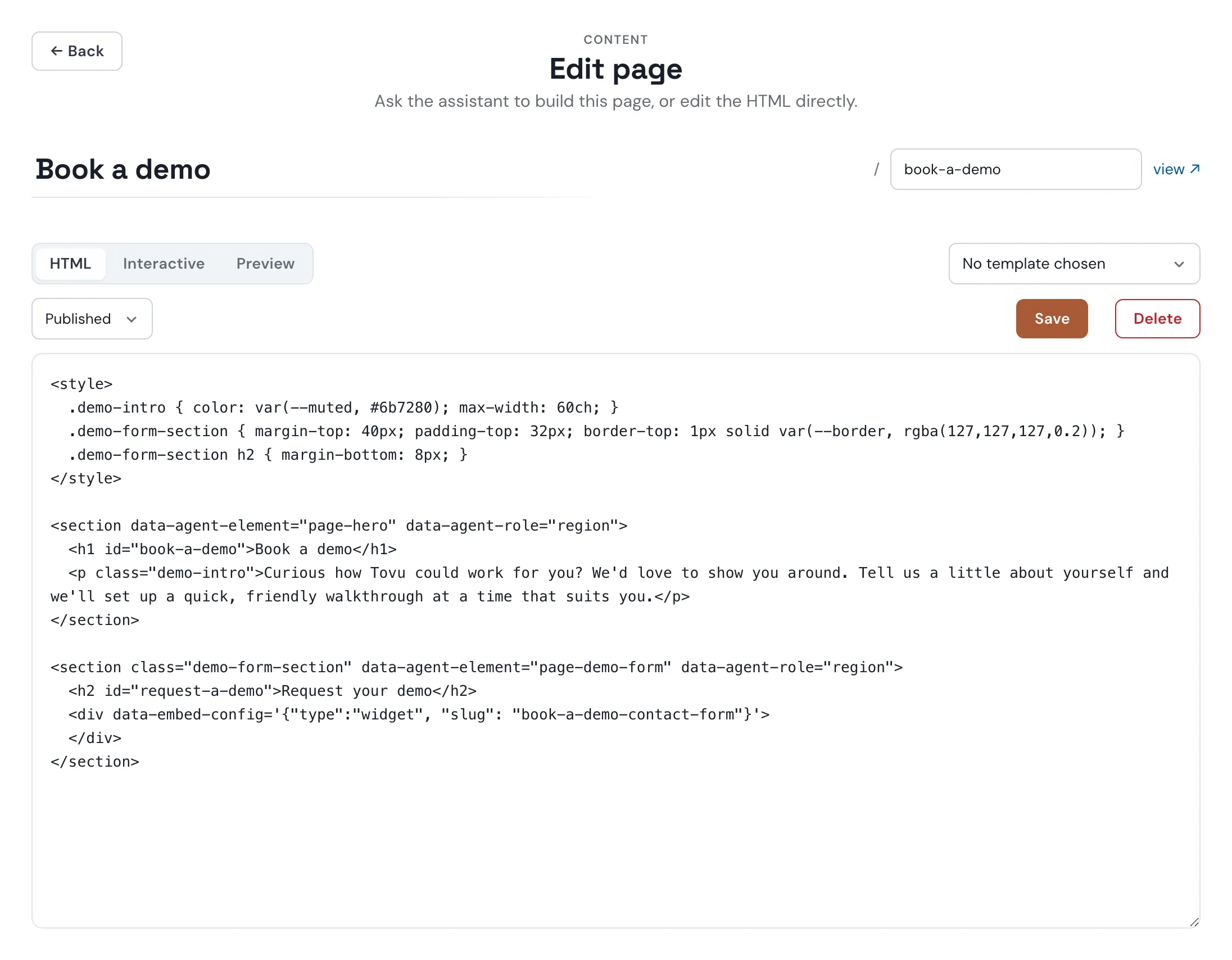
HTML
The page's raw code. Add <style> blocks, sections, embeds, anything.
Interactive
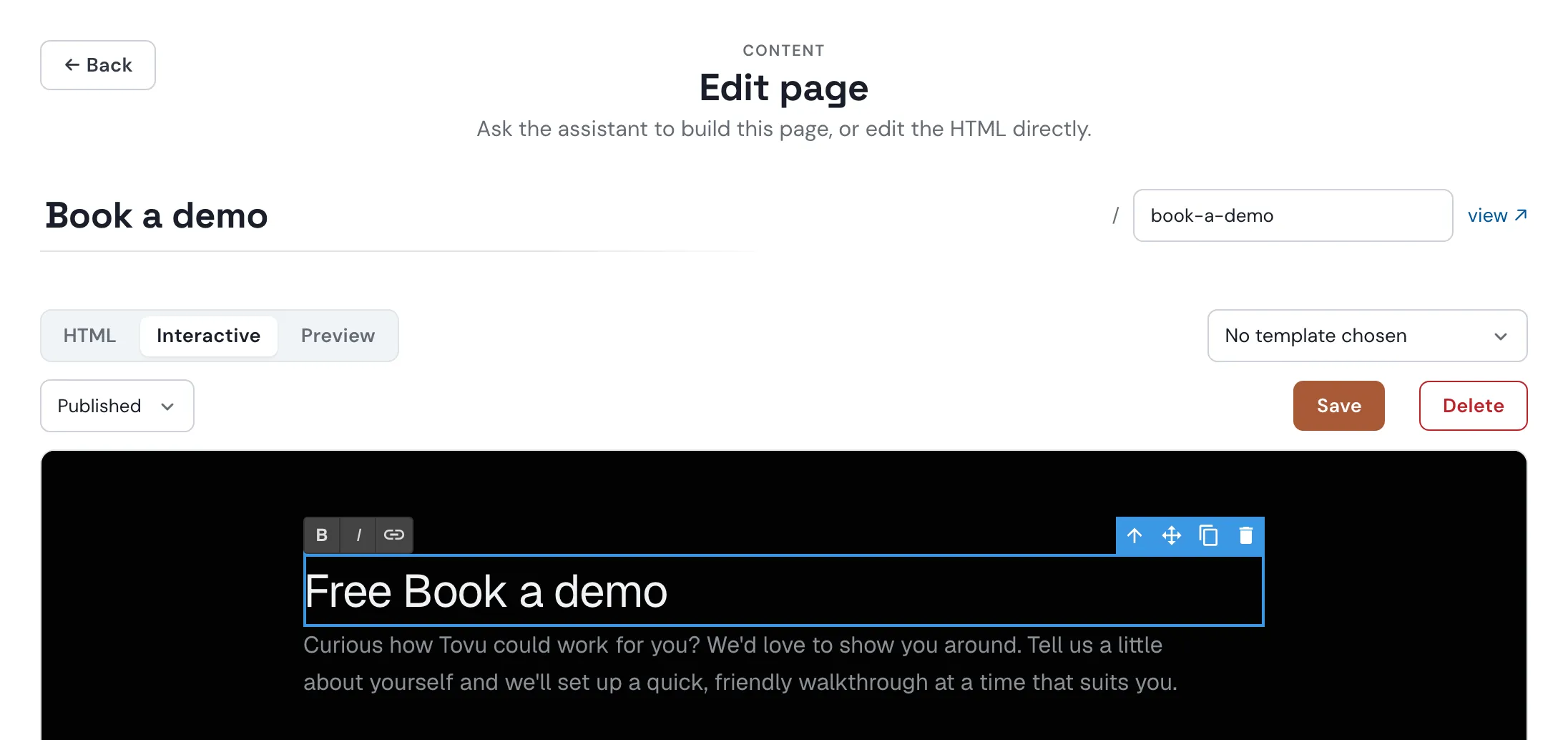
Your page, styled by your theme, where you can edit text in place.
- Edit text — click into a heading or paragraph and type. Bold, italic and link sit in a small toolbar.
- Move or remove — select a block to move, duplicate or delete it.
- Embeds — show as placeholder cards here. The real thing appears in Preview and on the site.
Your edits show up in the HTML tab too. Press Save to keep them.
Preview
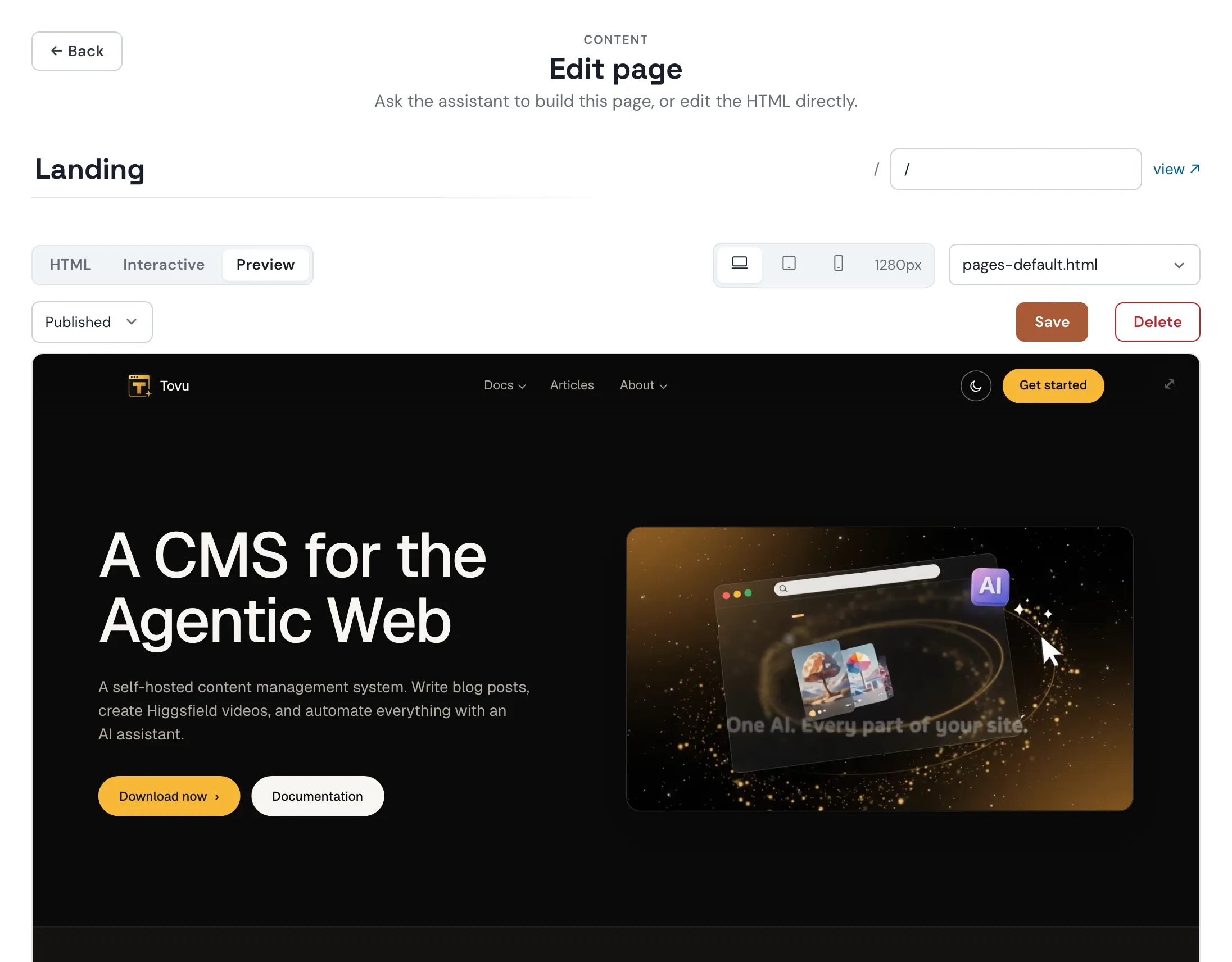
The page exactly as visitors see it, inside your theme's header and footer. Unsaved edits show up a moment after you stop typing.
- Widths — the device icons: Desktop (1280px), Tablet (834px) or Mobile (390px).
- Expand — the corner button fills the screen at the width you picked. Esc closes it.
Title, slug and status
- Slug — the page's address: lowercase letters, numbers and dashes. view ↗ opens it on your site.
- Draft or Published — Draft hides the page but keeps it. A draft shows a Publish button.
- Save — a dot (Save •) means unsaved changes.
- Delete — moves the page to the trash.
- Autosave — unsaved work is kept as you type. Come back later and you can restore or discard it.
- Safe edits — Tovu warns you before you leave with unsaved changes, and before you overwrite someone else's save.
Templates
A template is the frame your Page sits in. Pick one from the menu at the top right of the editor. The list comes from your active theme. The default theme offers:
- pages-default.html — header, one column, footer. The standard Page.
- posts-default.html — the blog-post layout.
- posts-sidebar.html — docs layout with a sidebar menu.
- index — the home-page layout, with no title bar.
- listing-default.html — your content, then your 6 latest Posts.
- No template — only your page's HTML. No theme styles, scripts, header or footer.
The home page
Set a Page's slug to / and it becomes your home page. Unpublish or delete it and the theme's own home page comes back. Only a Page can claim /.
Embeds
A Page can pull in a form or widget, an image or video, or another page or post with an embed marker. See Embeds for every type.
A widget embed, by slug:
<div data-embed-config='{"type":"widget","slug":"contact-form"}'></div>That marker, live:
Which one should I use?
Use a Page when you need a specialized page with its own JavaScript and CSS. Use a Post for news and updates that you can type right in the editor.